
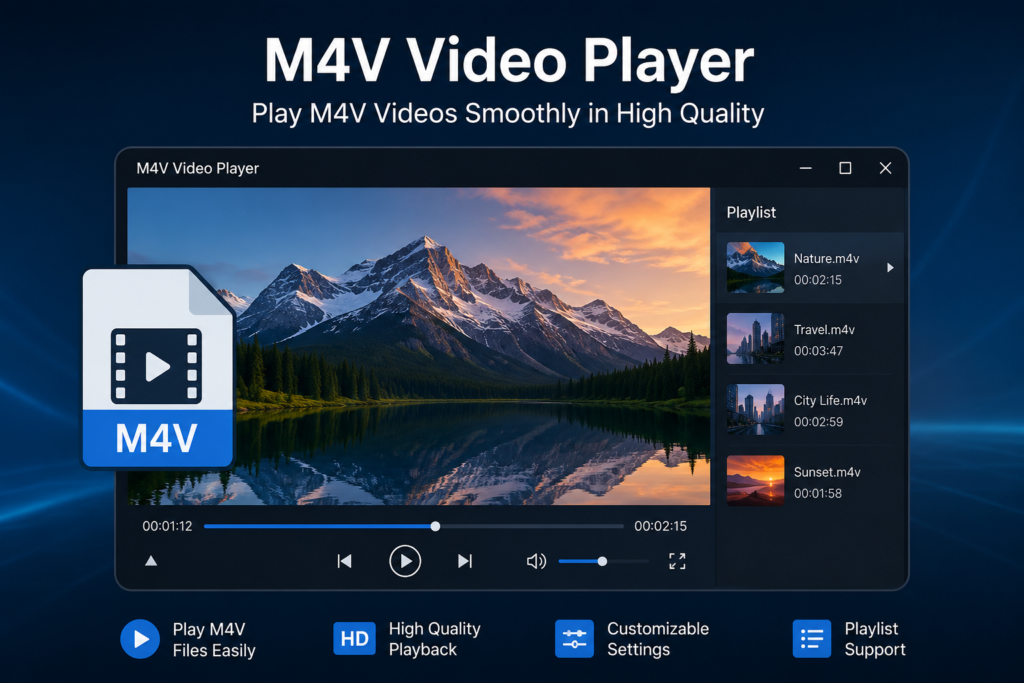

A few years ago, a friend sent me an M4V video that I was excited to watch. I double-clicked the file, expecting it to play instantly. Instead, I got an error message saying the format wasn’t supported. At first, I thought the file was corrupted. After a little research, I realized I simply needed the right M4V video player.
Since then, I’ve tried several media players, learned how the M4V format works, and figured out the easiest ways to play these files on Windows, Mac, Android, and even online. If you’ve ever struggled with an M4V file, you’re in the right place.
In this guide, I’ll explain everything you need to know in simple terms.
What Is an M4V Video Player?
An M4V video player is software designed to open and play files with the .m4v extension.
M4V is a video format developed by Apple. It is very similar to the popular MP4 format, but some M4V files include Apple’s Digital Rights Management (DRM) protection. Because of this, not every media player can open every M4V file.
Fortunately, many modern media players support standard (non-DRM) M4V files without any extra setup.
Related Keywords
Throughout this article, you’ll also come across related terms like:
- M4V file
- M4V player for Windows
- Best media player
- Play M4V files
- Convert M4V to MP4
Why Won’t My M4V File Play?
This is probably the most common question people ask.
In my experience, one of these reasons is usually responsible:
- The media player doesn’t support M4V.
- The file is protected with DRM.
- The file download was incomplete.
- The required video codec is missing.
- The file extension has been changed incorrectly.
I once spent nearly twenty minutes reinstalling software before discovering the file itself was incomplete. Since then, I always check the file size before trying anything complicated.
Best M4V Video Players
Here are some of the best players I’ve personally used.
VLC Media Player
This is my first recommendation every time.
Pros
- Completely free
- Supports hundreds of formats
- Available on Windows, Mac, and Linux
- Lightweight
- Easy to use
For most non-DRM M4V files, VLC opens them instantly.
QuickTime Player
If you’re using a Mac, QuickTime is already installed.
Advantages include:
- Native Apple support
- Smooth playback
- Simple interface
- Excellent video quality
It’s especially useful for videos downloaded from Apple services.
PotPlayer
Windows users who want more customization often prefer PotPlayer.
Features include:
- Hardware acceleration
- Subtitle support
- Playback speed control
- Excellent codec compatibility
KMPlayer
KMPlayer supports many video formats and offers advanced playback controls.
It’s a good option if you frequently watch different types of media files.
5KPlayer
Another excellent option for M4V playback.
It also includes:
- AirPlay support
- Music playback
- Video downloads
- High-resolution playback
How to Play an M4V File
Playing an M4V file is usually very simple.
Step 1
Download a reliable M4V video player like VLC.
Step 2
Install the software.
Step 3
Open the player.
Step 4
Click Open File.
Step 5
Select your M4V file.
Step 6
Enjoy your video.
That’s it.
Can You Convert M4V to MP4?
Yes.
If your device doesn’t support M4V, converting it to MP4 is often the easiest solution.
Many video converters can change:
- M4V to MP4
- M4V to AVI
- M4V to MOV
- M4V to MKV
Keep in mind that DRM-protected files usually cannot be converted legally without proper authorization.
My Personal Tips for Smooth Playback
After working with video files for years, I’ve picked up a few habits that save a lot of frustration.
Always Try VLC First
Whenever someone asks me why a video won’t open, my first suggestion is always VLC.
In many cases, the problem disappears immediately because VLC includes most codecs already built in.
Don’t Rename File Extensions
I’ve seen people rename:
movie.m4vmovie.mp4hoping it will magically work.
Unfortunately, that rarely fixes anything.
If the video format needs conversion, use a proper converter instead of simply changing the file extension.
M4V vs MP4
Many people confuse these two formats.
| Feature | M4V | MP4 |
|---|---|---|
| Developed by | Apple | MPEG |
| DRM Support | Yes | No |
| Compatibility | Good | Excellent |
| Widely Supported | Moderate | Very High |
| Streaming | Good | Excellent |
For everyday use, MP4 has broader compatibility, but M4V works perfectly within Apple’s ecosystem.
Can Phones Play M4V Files?
Yes, but it depends on the device.
iPhone
Usually supports M4V very well, especially Apple-created videos.
Android
Many Android phones require a third-party media player like VLC.
Common M4V Playback Problems
Here are a few issues users encounter.
Black Screen
Possible causes:
- Outdated graphics driver
- Unsupported codec
- Corrupted video
No Audio
Try:
- Updating your media player
- Checking audio settings
- Installing missing codecs
Choppy Playback
This may happen because:
- Your computer is low on memory.
- Another program is consuming system resources.
- The video resolution is very high.
Closing unnecessary applications usually helps.
Is an Online M4V Video Player Worth Using?
Sometimes.
Online players are convenient when:
- You don’t want to install software.
- You only need to view one file.
- The file isn’t very large.
However, for privacy, speed, and reliability, I still prefer desktop applications.
How to Choose the Best M4V Video Player
When choosing a player, I usually look for these features:
- Fast playback
- Codec compatibility
- Subtitle support
- Hardware acceleration
- Cross-platform availability
- Free updates
- Simple interface
A good player should work without requiring endless configuration.
Frequently Asked Questions
Is M4V the same as MP4?
Not exactly. They’re very similar, but M4V supports Apple’s DRM protection.
Which player is best for Windows?
VLC Media Player remains one of the best choices for Windows users.
Can I play DRM-protected M4V files?
Only with authorized software linked to the correct Apple account.
Is VLC free?
Yes. VLC is completely free and supports a huge range of video formats.
Do I need to convert M4V?
Not always. If your player supports M4V, there’s usually no need to convert it.
Final Thoughts
Finding the right M4V video player doesn’t have to be complicated. Once I discovered how the M4V format works, most of my playback issues disappeared. Whether you choose VLC, QuickTime, PotPlayer, or another trusted media player, the key is using software that properly supports the format.
If you’re dealing with standard M4V files, chances are a good media player will solve the problem immediately. And if compatibility becomes an issue, converting the file to MP4 is another practical option.
I hope this guide helped make M4V playback much easier. If you’ve found another great M4V player or have questions about a specific file, leave a comment below. I’d love to hear about your experience and help if I can.